YAML // blog
How to Convert YAML to JSON Manually (Without Losing Your Sanity to Indentation)
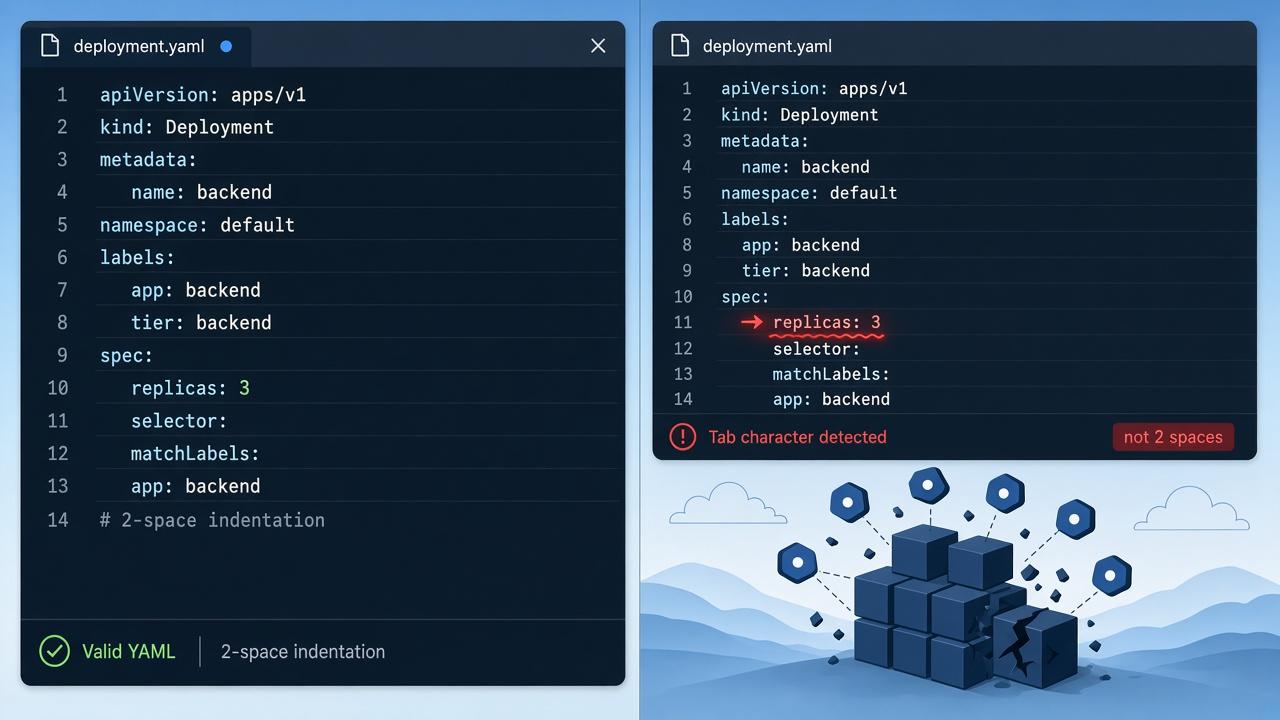
YAML to JSON ConverterYAML is great until you accidentally hit the Tab key instead of two spaces and bring down an entire Kubernetes cluster.
Unlike JSON — which wraps everything in unambiguous curly braces and double quotes — YAML relies on invisible whitespace and type coercion. Ever had the country code NO silently turn into false? That is the classic YAML Norway Problem.
Whether you are debugging a GitHub Actions workflow, parsing a Docker Compose file, or feeding config into a REST API that wants JSON, converting YAML to JSON is a survival skill.
If you just want it done in two seconds without installing anything, paste or upload the file in the YAML to JSON converter. js-yaml runs in this tab. Nothing is posted to a server. When you are done with a manual script, paste the JSON back into the same tool to check it.
Maps, lists, and types
Nested maps become JSON objects. Lists become arrays. Numbers, booleans, and null keep their JSON types. Default parsing in the converter follows YAML 1.2, so a bare yes stays a string instead of becoming a boolean.
YAML
name: Ada
active: true
tags:
  - yaml
  - json
That dump becomes:
JSON
{
  "name": "Ada",
  "active": true,
  "tags": ["yaml", "json"]
}
The anatomy of YAML vs. JSON
Before writing any code, look at what actually changes:
config.yaml
service:
  name: auth-worker
  port: 8080
  debug: false
  tags:
    - production
    - v2
config.json
{
  "service": {
    "name": "auth-worker",
    "port": 8080,
    "debug": false,
    "tags": [
      "production",
      "v2"
    ]
  }
}
Key mappings turn into JSON object properties. Hyphenated lists (- item) become JSON arrays. Comments (# ...) vanish because JSON has no comment syntax.
Multi-document files
Sources split with --- load as a JSON array in the converter. Turn on All docs if you want a one-item array for a single document. Lines writes one JSON value per document (NDJSON).
What stays on the device
Paste or drop a .yaml / .yml file. The reader never leaves the browser. Input is capped at 50,000 characters so a huge dump cannot freeze the tab. Need the other direction? Use the JSON to YAML converter.
If you still want to convert in Node.js, Python, or a pipeline, the methods below do that. Run them, then drop the output into the YAML to JSON converter to confirm the JSON matches what you expect.
Method 1: Convert YAML to JSON in Node.js (js-yaml)
JavaScript has JSON.parse() built in, but it does not have a native YAML parser. The usual package is js-yaml — the same library the html69 converter uses in the tab.
1. Install js-yaml
bash
npm install js-yaml2. Run the conversion script
node.js
import fs from "node:fs";
import yaml from "js-yaml";

try {
  const rawYaml = fs.readFileSync("./config.yaml", "utf8");
  const parsedData = yaml.load(rawYaml);
  const jsonOutput = JSON.stringify(parsedData, null, 2);

  fs.writeFileSync("./config.json", jsonOutput, "utf8");
  console.log("Converted successfully!");
} catch (err) {
  console.error("YAML syntax error:", err.message);
}
If the YAML file contains multiple documents separated by ---, use yaml.loadAll(rawYaml) instead of yaml.load(), which only reads the first document. The converter's All docs option does the same thing without a script.
Method 2: The Python one-liner (PyYAML)
If Python is already on the machine, you can convert YAML to JSON from the terminal without a separate script file.
1. Install PyYAML
bash
pip install pyyaml2. Run the terminal one-liner
bash
python3 -c 'import sys, yaml, json; json.dump(yaml.safe_load(sys.stdin), sys.stdout, indent=2)' < config.yaml > config.jsonAlways use yaml.safe_load() instead of yaml.load(). Older PyYAML defaults could execute Python objects embedded in untrusted YAML — not the surprise you want on a Friday afternoon.
Method 3: Command line with yq (for DevOps pipelines)
If you work with Kubernetes or CI/CD daily, yq is jq for YAML.
bash
# Install on macOS
brew install yq

# Convert YAML to formatted JSON
yq -o=json '.' config.yaml > config.json
It streams fast, handles multi-document YAML, and slots into Bash scripts. After it writes config.json, open that file in the converter if you want a second look before a deploy.
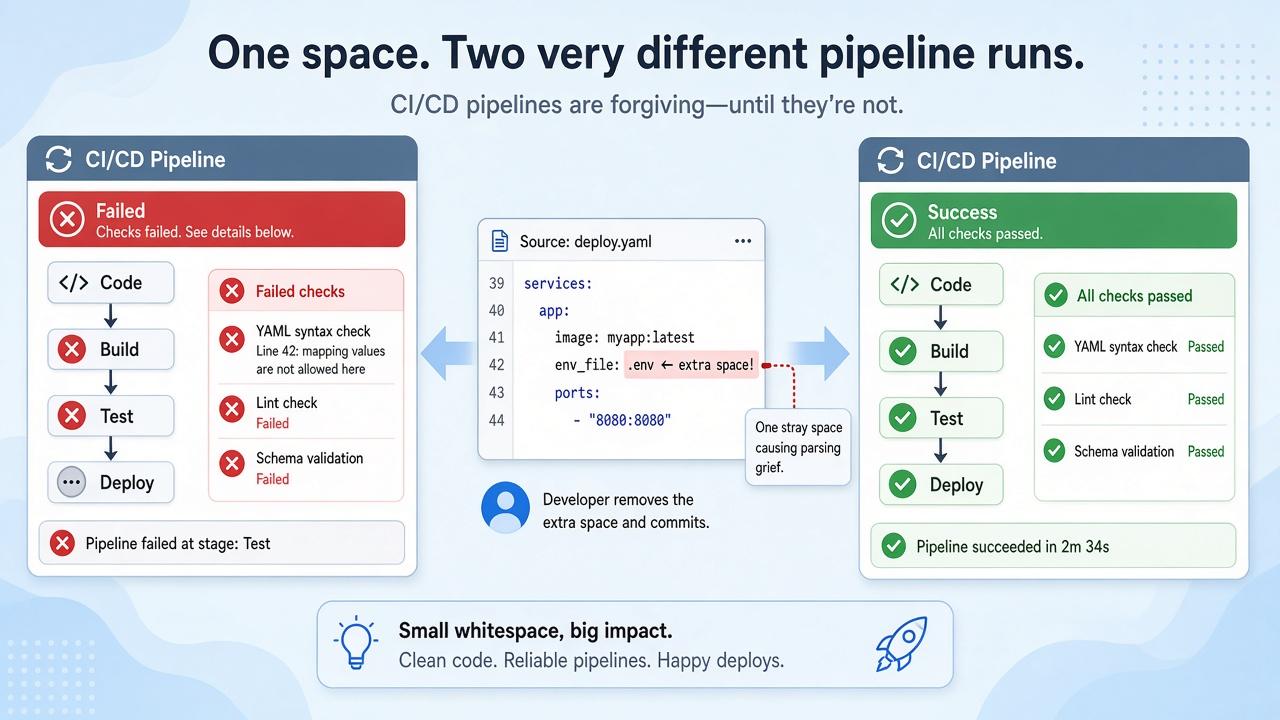
Three gotchas that will trip you up
- Comments disappear forever. JSON has no comment syntax. Any
# Important noteinside a.yamlfile is stripped during conversion. - YAML anchors (
&) and aliases (*) get expanded. If you reuse blocks of config with anchors, converting to JSON duplicates those values into full objects. - Unquoted strings can mutate. In older YAML 1.1, unquoted
yes,no,on, andoffturn into booleans, and1.0turns into a float. Wrap strings in quotes if they must stay strings. The converter defaults to YAML 1.2; turn on YAML 1.1 when you need the old boolean rules.
Skip the boilerplate when you are in a hurry
Spinning up a Node script or installing CLI tools just to inspect one config file is overkill. Drop the file or paste the snippet into the YAML to JSON converter — or go the other way with the JSON to YAML converter. Everything parses locally. Instant syntax errors, one-click download, and a place to validate what your script just wrote.